Enrollment
After purchasing the NCC offer from the Azure Marketplace and configuring your Entra groups and roles, you need to complete the enrollment process. This involves setting up your environment, configuring necessary permissions, and deploying or connecting to Azure resources.
Global Administrator
To complete the enrollment process, you must have Global Administrator permissions.
Fabric License
To complete the enrollment process, you must have a Fabric license (free or paid). Make sure to verify the applicable Microsoft licensing requirements before enrollment.
Prerequisites
The first step of the enrollment is to ensure that you meet all the prerequisites. These checks are:
- Validation that all the required consents and permissions are in place. See Permissions for details on the necessary permissions.
- Validation that confirms your organization is registered within our backoffice systems.
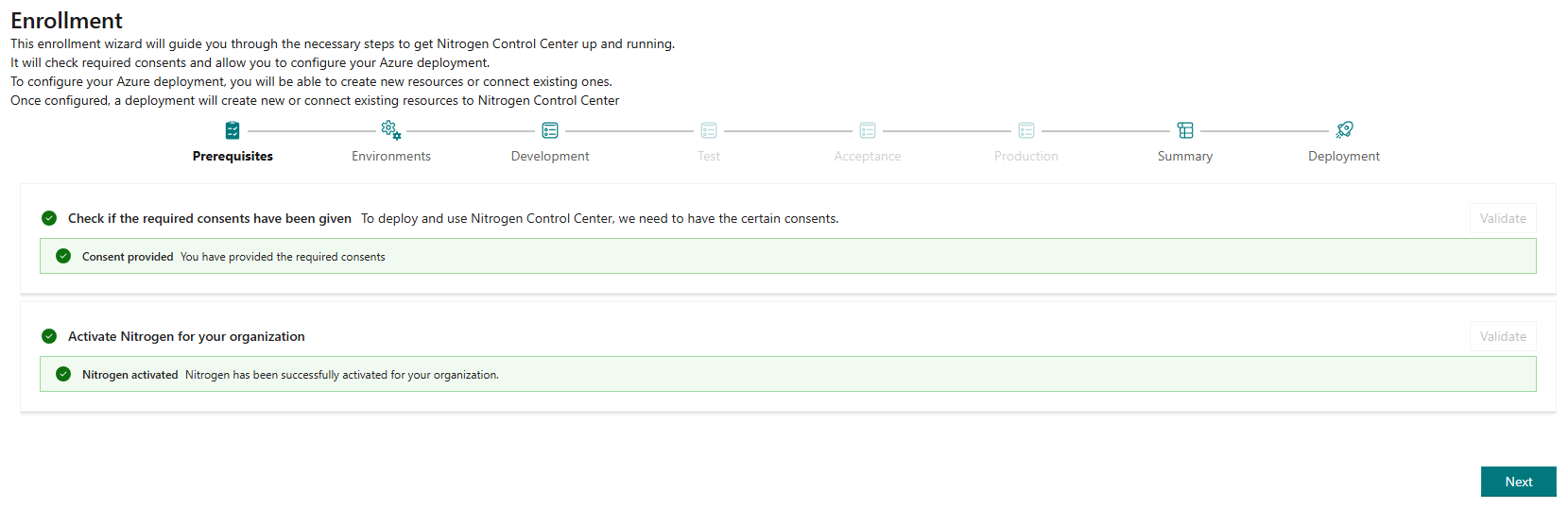
After meeting these requirements, continue with the next steps of choosing your environments and configuring your Azure resources.
Environments
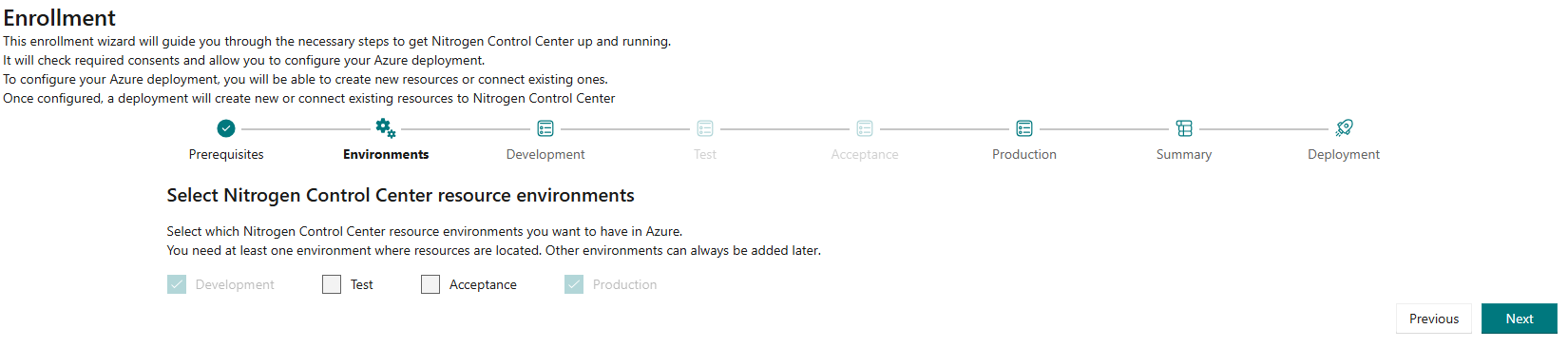
Select the environments you want to enroll in NCC. You can choose from Development, Test, Acceptance, and Production environments. Each environment will have its own set of resources and configurations.
Once an environment is deployed at the end of the enrollment, you won't be able to remove it manually. If you want to remove an environment after enrollment, please contact InSpark support.
Info
The Development environment is the only required environment for enrollment. You can choose to enroll in additional environments based on your organization's needs.
Environment configuration
After selecting the environments, you will need to configure the necessary Azure resources for each environment. For Nitrogen Control Center to function properly, there are two mandatory resources that need to be configured: 1. Fabric Capacity 2. Key vault
Each of these resources need to be deployed within a resource group in an Azure subscription. To be able to support a 'Bring your own' model, you are able to choose and configure your own resources, or you can choose to have NCC deploy the required resources for you.
Naming conventions
All new resources will be deployed using a default naming convention. If you want to use different names for your resources, create them manually and select them during the enrollment process.
Subscription
Select the Azure subscription where you want to deploy the required resources for NCC. This needs to be an existing subscription that you have Owner permissions on. Once you select the subscription, NCC will validate if you have the necessary permissions. After completing the enrollment, you won't be able to change this setting.
Capacity administrator(s)
Select the user(s) that will be setup as administrator for the deployed (or selected) capacity. The capacity administrator(s) will have admin access to the Fabric capacity and will be responsible for managing it. You can select one or more users as capacity administrators. NCC will validate if the given email addresses are valid, but not if they are actual users. After completing the enrollment, you will be able to change the capacity administrator(s).
Warning
Make sure the user performing the enrollment has a valid Power BI license that meets Microsoft's licensing prerequisites for your tenant and Fabric capacity configuration. A Power BI Free license may only be sufficient in specific scenarios, so verify the applicable Microsoft licensing requirements before enrollment.
Warning
Make sure the user that will work with Nitrogen Control Center and that will be configuring Domains (see Domain Wizard) is configured as a capacity administrator, otherwise they won't have access to the Domain Wizard.
Resource group
Info
Configuring a resource group is required when you choose to have NCC deploy the required resources for you.
Select an existing resource group or choose to have NCC create a new resource group for you by selecting "Create new". If you choose to create a new resource group, select the region where you want the resource group to be created.
Fabric Capacity
Select an existing Fabric capacity or choose to have NCC deploy a new capacity for you. A new capacity will always be deployed with an F4 SKU, but can be changed manually later.
Warning
NCC does not support the F2 SKU: it lacks the compute Nitrogen needs to run its own workloads (e.g. Spark), so provisioning a domain or workspace on an F2 capacity is rejected. If you select an existing capacity, make sure it is F4 or higher.
Key vault
Select an existing key vault or choose to have NCC deploy a new key vault for you. The key vault is used to store secrets and keys that are used by NCC. A connection to this key vault will also be made within fabric to allow NCC to retrieve secrets and keys when needed.
Summary
After configuring the necessary settings and resources for each environment, you will be presented with a summary of your selections. Review the summary carefully to ensure that all the information is correct. If you need to make any changes, you can go back to the previous steps and update your selections.
Warning
Once you click Next, the settings will be saved and won't be able to be changed later (except for the capacity administrator(s)). Make sure to review all the information carefully before proceeding.
Deployment
Use the Start Deployment button to deploy new resources or connect existing resources to NCC. The deployment process may take some time, especially if you are deploying new resources. You can monitor the progress of the deployment on this page, under the Deployment tab or in the Activity Center.
Info
If a deployment was done in the past, you will see the status of the previous deployment here. You may always choose to re-deploy. The deployment is idempotent, so it will only make changes if there are differences between the current state of the resources and the desired state based on your selections during enrollment.
Warning
Do not leave the enrollment page during deployment. If you leave the page, the deployment will continue in the background, but you won't be able to see the progress or any errors that may occur. The progress of the deployment can be monitored in the Activity Center. If you encounter any issues during deployment, please contact InSpark support for assistance.
Next steps
After deployment is complete, a few manual steps are required. You can find more information on these steps in the Post Deployment Steps documentation.