Configure Entra Groups and Roles
Learn how to set up users, roles, and groups for the Nitrogen Control Center (NCC) Portal.
Prerequisites
- Access to the Nitrogen Portal
- Appropriate permissions to manage Enterprise Applications and Entra groups
Add a User and Assign Roles
Follow these steps to add a user and assign roles in the NCC Portal.
Step 1: Open the Entra Portal
Go to the Entra Portal.
Step 2: Navigate to Enterprise Applications
In the left navigation pane, select Enterprise Applications.
Step 3: Locate the Application
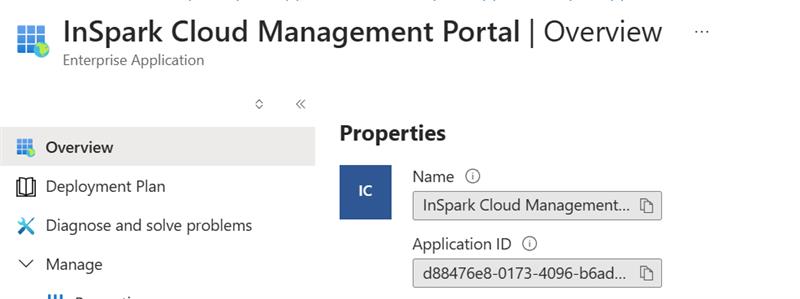
Search for InSpark Cloud Management Portal and select it.
Step 4: Create Entra Groups (Optional)
Set up the following Entra groups (Group names based on your organization's naming conventions) to manage access and permissions in the NCC Portal:
-
sg-ncc-admin
Add users who require admin role permissions. -
sg-ncc-contributor
Add users who require contributor role permissions. -
sg-ncc-member
Add users who require member role permissions. -
sg-ncc-reader
Add users who require reader role permissions. -
sg-ncc-service
Add service principals such as InSpark Nitrogen Control Center.
Note
The group names and roles should match your organization's authorization matrix.
For more details, see Authorization Matrix.
Step 5: Add the Configured Entra Groups or Users to 'InSpark Cloud Management Portal' Enterprise Application
- Go to your
InSpark Cloud Management PortalEnterprise Application. - Go to
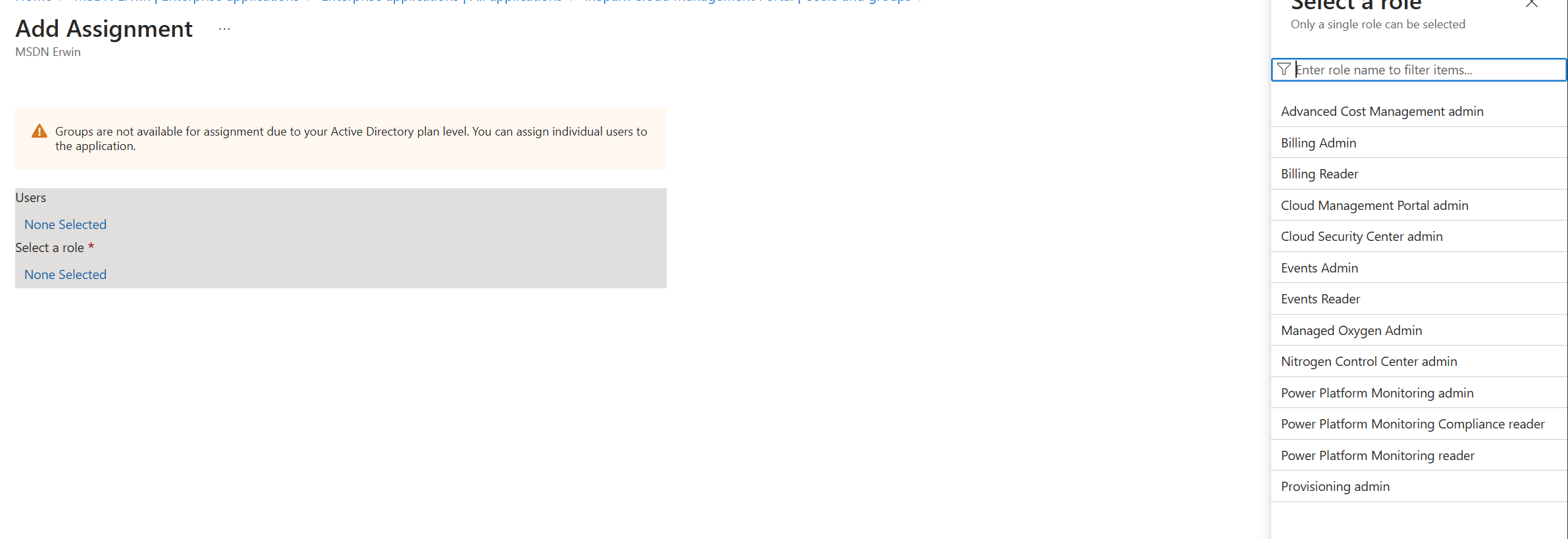
Users and groups - Add the Configured Entra Groups

Assign the Nitrogen Control Center admin role or other appropriate roles to the user.
Step 6: Activate Access
Ask the user to sign out and sign in again to activate their access.