You can download the solution here
For conceptual information about this solution please see the agent monitoring concept
User Manual — Importing the Managed Solution
1. Overview
This manual explains, step by step, how to import the InSpark Agent Monitoring managed solution into a Microsoft Power Platform environment and how to set up its connection references during the import.
The solution contains two Power Automate cloud flows:
- RFlow - Copilot Studio Evaluator (Parent) — runs on a schedule, discovers monitored agents, and fans out to the child flow.
- IFlow - Evaluate Copilot Studio Agent (Child) — evaluates one agent end-to-end and publishes results to CMP (AAA).
To run, the solution needs three connection references bound to real connections. Setting these up correctly during import is the most important part of this procedure.
2. Before you begin (prerequisites)
Please view the prerequisites before you begin.
3. (Recommended) Create the connections up front
Creating connections before import is optional but recommended. Go to make.powerautomate.com → select the target environment (top-right) → Connections → + New connection, and create one of each:
3.1 HTTP with Microsoft Entra ID (preauthorized)
- Search for HTTP with Microsoft Entra ID (preauthorized) and add it.
- Enter these values (both are the same for this solution):
| Field | Value |
|---|---|
| Base Resource URL | https://api.inspark.nl |
| Microsoft Entra ID Resource URI (Application ID URI) | https://api.inspark.nl |
- Sign in / consent when prompted. Confirm the connection shows Connected.
3.2 Microsoft Copilot Studio
- Search for Microsoft Copilot Studio and add it.
- Sign in with an account that can access the monitored agents. Confirm Connected.
3.3 Microsoft Dataverse
- Search for Microsoft Dataverse and add it.
- Sign in with an account that has access to Dataverse in this environment. Confirm Connected.
You now have one connection for each of the three connection references.
4. Import the managed solution
- Go to make.powerapps.com and select the target environment in the top-right environment picker. Double-check you are in the correct environment.
- In the left navigation choose Solutions.
- On the command bar choose Import solution.
- Choose Browse, select the managed solution
.zip(for exampleInSparkAgentMonitoring_managed.zip), then choose Next. - Review the solution details (name InSparkAgentMonitoring, publisher InSpark, version). Choose Next.
5. Set up the connection references during import
After the solution details, the wizard shows a Connections (connection references) step. This solution has three references to bind:
| Connection reference | Bind to a connection of type |
|---|---|
| CR-CMP-InSparkAgentMonitoring | HTTP with Microsoft Entra ID (preauthorized) |
| CR-CopilotStudio-InSparkAgentMonitoring | Microsoft Copilot Studio |
| CR-Dataverse-InSparkAgentMonitoring | Microsoft Dataverse |
For each connection reference:
- Open the dropdown next to the connection reference.
- If you created the connections in Section 3, pick the matching connection from the list.
- If not, choose + New connection. A new tab opens:
- For CR-CMP-InSparkAgentMonitoring, enter Base Resource URL =
https://api.inspark.nland Microsoft Entra ID Resource URI (Application ID URI) =https://api.inspark.nl, then sign in / consent. - For CR-CopilotStudio-InSparkAgentMonitoring and CR-Dataverse-InSparkAgentMonitoring, sign in when prompted.
- Return to the import tab and choose Refresh (the circular arrow) so the new connection appears, then select it.
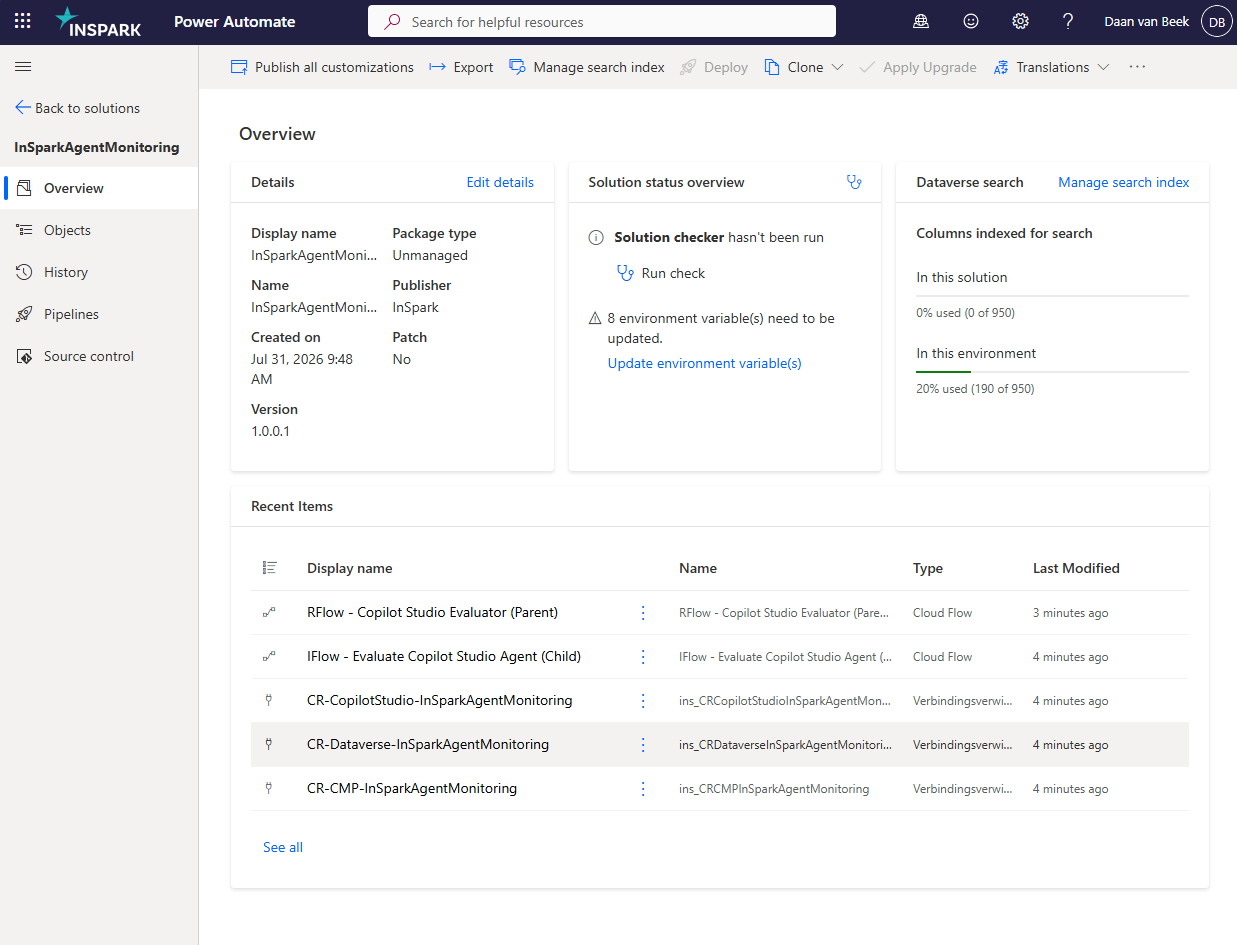
When all three connection references show a selected connection, choose Import.
The import runs in the background and can take a few minutes. You can watch progress under Solutions; a banner confirms success.
6. Post-import configuration
6.1 Verify the connection references
- Open the imported InSparkAgentMonitoring solution.
- Filter the component list to Connection references.
- Confirm all three are present and each is bound to a Connected connection.
6.2 Set the environment tag on the parent flow
The parent flow matches each agent's environmentName against the flow tag
environmentName, so it only evaluates agents that belong to this environment.
Make sure this environment's agents are registered in CMP with the matching
environmentName.
6.3 Turn on the flows
- In the solution, open each flow (RFlow - Copilot Studio Evaluator (Parent) and IFlow - Evaluate Copilot Studio Agent (Child)).
- If a flow is off, choose Turn on.
- Confirm the parent's Recurrence schedule (09:00, 13:00, 17:00, W. Europe Standard Time).
7. Validate the import
- Open RFlow - Copilot Studio Evaluator (Parent) and choose Run (or wait for the next scheduled run).
- Open the run history and confirm:
Get agents from API of AAAsucceeds (CMP connection works).- The child flow is called for at least one agent.
- The child's final
Send agent evaluation to API of AAA(PUT) succeeds. - Confirm the evaluation results appear in CMP.
8. Troubleshooting
| Symptom | Likely cause | What to do |
|---|---|---|
| Import fails on a connection reference | A reference was left unbound | Re-run the import and select a connection for all three references. |
Get agents from API of AAA returns 401/403 |
Wrong Base Resource URL / Application ID URI, or the account is not pre-authorized on the API | Re-check the CMP connection values (https://api.inspark.nl for both) and the API authorization. |
| Copilot Studio actions fail | Copilot Studio connection expired or lacks access | Re-authorize CR-CopilotStudio-InSparkAgentMonitoring. |
| Parent run Cancelled | No monitored agents matched this environment | Check the Filter array output and the agents' environmentName in CMP. |
| Child run Cancelled, no results | Agent has no AAA-AutomationCMP test set |
Create the test set on the agent, or accept that the agent is skipped by design. |
| Flows do not run on schedule | Flows are turned off | Turn on both flows (Section 6.3). |